


Liquid Glass is a lightweight web component that creates a realistic, iOS-inspired liquid glass distortion effect using SVG displacement filters.
Features:
- Framework Agnostic: Works in vanilla JavaScript, React, Vue, Angular, or any other environment.
- Chromium Optimized: Takes advantage of SVG displacement filter support in Chrome, Edge, and other Chromium browsers for the full distortion effect.
- Graceful Degradation: Automatically detects browser capabilities and falls back to a simplified blur effect in Firefox and Safari.
- Interactive Depth: Responds to mouse events with dynamic depth changes. The glass effect intensifies on click.
- Responsive Sizing: Includes an optional responsive mode that scales the component based on viewport width. Also supports auto-sizing to fit content.
- Highly Customizable: Exposes attributes for width, height, radius, depth, blur strength, chromatic aberration, and background color.
- High Performant: Uses requestAnimationFrame for smooth animations and ResizeObserver for size updates.
See It In Action:
How To Use It:
1. Download the package and load both JavaScript files in your HTML. The order matters because glass-element.js depends on utilities from displacement-utils.js.
<script src="displacement-utils.js"></script>
<script src="glass-element.js"></script>
2. Use the <glass-element> Custom Element directly in your markup. The component accepts standard HTML attributes for configuration as follows:
<glass-element
  width="200"
  height="200"
  radius="50"
  depth="10"
  blur="2"
  strength="100"
  background-color="rgba(255,255,255,0.4)"
  chromatic-aberration="0">
  <!-- Your content goes here -->
  <div style="padding: 20px;">
    <h3>Glass Card</h3>
    <p>Content appears inside the glass effect</p>
  </div>
</glass-element>
3. The component can automatically size itself to fit its content. This mode is useful for buttons or dynamic content.
The
base-widthandbase-heightattributes define the full-size dimensions. The component calculates scaled dimensions automatically.
<glass-element
  auto-size
  min-width="120"
  min-height="60"
  radius="32"
  depth="5"
  blur="1"
  strength="40"
  style="--glass-padding: 16px 32px;">
  <!-- Component wraps to content size -->
  <button style="background: transparent; border: none; color: white;">
    Click Me
  </button>
</glass-element>
4. Enable responsive mode to scale the component based on viewport width. The component uses predefined breakpoints for mobile, tablet, and desktop.
<glass-element
  responsive
  base-width="300"
  base-height="200"
  radius="32">
  <!-- Component scales at 60% on small mobile -->
  <!-- Component scales at 80% on mobile/tablet -->
  <!-- Component scales at 90% on tablet -->
  <!-- Component renders at 100% on desktop -->
  <div>Responsive Content</div>
</glass-element>
5. All configuration options. The component observes the following attributes. You can change them via HTML or JavaScript (using setAttribute), and the component will re-render immediately.
- width: Component width in pixels. Default:
200. - height: Component height in pixels. Default:
200. - radius: Border radius in pixels. This affects both visual appearance and displacement gradient calculation. Default:
50. - depth: Distortion intensity. Higher values create more pronounced glass effects. The component dynamically adjusts depth on click. Default:
10. - blur: Blur intensity applied with the displacement filter. Works in two stages for the full effect. Default:
2. - strength: Displacement map scale value. Controls how much the displacement map distorts the background. Default:
100. - chromatic-aberration: Color channel separation intensity. Creates a prism-like effect at the edges. Set to
0to disable. Default:0. - background-color: Background color with alpha transparency. Use rgba format for best results. Default:
rgba(255,255,255,0.4). - debug: Shows the displacement map directly instead of applying the filter. Accepts
trueorfalse. Default:false. - responsive: Enables viewport-based scaling. No value needed. Add the attribute to activate.
- base-width: Base width for responsive mode. The component scales this value based on viewport. No default.
- base-height: Base height for responsive mode. The component scales this value based on viewport. No default.
- auto-size: Makes the component wrap to content size. No value needed. Add the attribute to activate.
- min-width: Minimum width in pixels when using auto-size. Default:
0. - min-height: Minimum height in pixels when using auto-size. Default:
0.
Alternatives & Related Resources:
- Create Advanced Liquid Glass & Noise Effects with FxFilterJS
- Draggable Liquid Glass Lens Component for React & Next.js
- 40+ Apple Liquid Glass-inspired UI Components for Next.js – glass-ui
- Liquid Glass UI/Graphic Design Resources
FAQs:
Q: Why doesn’t the effect work in Firefox or Safari?
A: Firefox and Safari don’t support SVG filters in the backdrop-filter CSS property. The component detects this automatically and falls back to a simple blur effect with brightness and saturation adjustments.
Q: The auto-size mode gives me incorrect dimensions. What’s wrong?
A: Auto-size measures content after rendering. If your content loads asynchronously or contains images, the initial measurement may be wrong. Use min-width and min-height attributes to set floor values. For images, ensure they have explicit dimensions or wait for the load event before adding them to the component.
Q: Why is the background gray when I enable ‘debug’?
A: The debug mode shows the raw displacement map. The gray areas represent “neutral” pixels (no displacement). The colorful gradients represent the X and Y vectors that tell the browser which direction to push the pixels.
Q: Does this impact performance?
A: SVG filters are computationally expensive. We recommend not using too many of these elements on a single page simultaneously.
See Also:
 SVG Liquid Glass Refraction for HTML Elements – Hyalite.js
 liquid-glass.js: iOS Liquid Glass Web Component with SVG & WebGL
 Create Modern Glassmorphism Interfaces with Liquid Glass CSS Framework
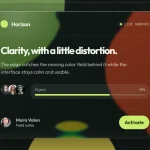 Liquid Glass: iOS-Style Refraction for Any Element
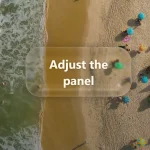 WebGL Liquid Glass Effect for HTML Elements – LiquidGlass.js
 Create Liquid Glass Effects with Dynamic Displacement – GlassiFy
 WebGL-Powered iOS-Style Liquid Glass Effects for JavaScript
 Create Realistic Liquid Glass UI with RealGlass Library