


Yet another responsive, accessible image slider carousel built with JavaScript and CSS/CSS3. Ideal for portfolios, product images, or photo galleries.
This slider allows users to navigate through images via thumbnails, prev/next buttons, or arrow keys. It also supports Home and End keys for quick access to the first and last images.
How to use it:
1. Create a container div with class “image-slider”. Inside, add a section for the slider content and a nav for thumbnails. Include prev/next buttons and an image display area in the content section.
<div class="image-slider">
  <section class="slider__content">
    <button type="button" class="slider-control--button prev-button">
      <svg width="16" height="16" fill="currentColor" class="icon arrow-left-circle" viewBox="0 0 16 16">
        <path fill-rule="evenodd" d="M1 8a7 7 0 1 0 14 0A7 7 0 0 0 1 8m15 0A8 8 0 1 1 0 8a8 8 0 0 1 16 0m-4.5-.5a.5.5 0 0 1 0 1H5.707l2.147 2.146a.5.5 0 0 1-.708.708l-3-3a.5.5 0 0 1 0-.708l3-3a.5.5 0 1 1 .708.708L5.707 7.5z" />
      </svg>
    </button>
    <main class="image-display"></main>
    <button type="button" class="slider-control--button next-button">
      <svg width="16" height="16" fill="currentColor" class="icon arrow-right-circle" viewBox="0 0 16 16">
        <path fill-rule="evenodd" d="M1 8a7 7 0 1 0 14 0A7 7 0 0 0 1 8m15 0A8 8 0 1 1 0 8a8 8 0 0 1 16 0M4.5 7.5a.5.5 0 0 0 0 1h5.793l-2.147 2.146a.5.5 0 0 0 .708.708l3-3a.5.5 0 0 0 0-.708l-3-3a.5.5 0 1 0-.708.708L10.293 7.5z" />
      </svg>
    </button>
  </section>
</div>
2. Within the slider navigation, create buttons with class “nav-button” for each image. Each button should contain an image to be showcased in the slider.
<nav class="slider-navigation">
  <button class="nav-button" aria-selected="true">
    <img class="thumbnail" src="https://picsum.photos/800/400?random=1" alt="Thumbnail 1" />
  </button>
  <button class="nav-button" aria-selected="false">
    <img class="thumbnail" src="https://picsum.photos/800/400?random=2" alt="Thumbnail 2" />
  </button>
  <button class="nav-button" aria-selected="false">
    <img class="thumbnail" src="https://picsum.photos/800/400?random=3" alt="Thumbnail 3" />
  </button>
  <button class="nav-button" aria-selected="false">
    <img class="thumbnail" src="https://picsum.photos/800/400?random=4" alt="Thumbnail 4" />
  </button>
  <button class="nav-button" aria-selected="false">
    <img class="thumbnail" src="https://picsum.photos/800/400?random=5" alt="Thumbnail 5" />
  </button>
  <button class="nav-button" aria-selected="false">
    <img class="thumbnail" src="https://picsum.photos/800/400?random=6" alt="Thumbnail 6" />
  </button>
</nav>
3. Copy the following CSS into your stylesheet. These styles create the slider’s layout, handle responsiveness, and define the appearance of navigation elements.
*,
*::after,
*::before {
  margin: 0;
  padding: 0;
  box-sizing: border-box;
}
// Override the variables here
:root {
  --active-color: hsl(204 100 53);
  --icon-default: hsl(203 5 75);
  --icon-accent: hsl(203 15 98);
  --navigation-color: hsl(203 5 25 / 0.3);
}
.image-slider {
  display: flex;
  flex-flow: column;
  width: clamp(360px, 96vw, 830px);
  aspect-ratio: 16 / 9;
  min-height: 300px;
  overflow: hidden;
  border-radius: 8px;
  container-type: inline-size;
  contain: content;
  background-color: #0006;
  box-shadow: rgba(0, 0, 0, 0.2) 0px 1px 2px, rgba(0, 0, 0, 0.3) 0px 2px 4px,
      rgba(0, 0, 0, 0.25) 0px 4px 8px, rgba(0, 0, 0, 0.2) 0px 8px 16px,
      rgba(0, 0, 0, 0.15) 0px 16px 32px;
}
.slider__content {
  flex-grow: 1;
  display: flex;
  justify-content: space-between;
}
.slider-control--button {
  border: 0;
  background: 0;
  outline: 0;
  cursor: pointer;
  place-content: center;
  padding-inline: 3vw;
  z-index: 1;
  display: grid;
}
.icon {
  height: 2rem;
  width: 2rem;
  fill: var(--icon-default);
  border-radius: 50%;
}
.slider-control--button:where(:hover) {
  background-image: linear-gradient(
      to var(--position),
      #0000 0%,
      #0002,
      80%,
      #0006 100%
  );
  .icon {
      fill: var(--icon-accent);
      background: #0001;
  }
}
.slider-control--button:active {
  outline: 0.2em solid hsl(204 100 53);
  outline-offset: -0.5em;
}
.prev-button {
  --position: left;
}
.next-button {
  --position: right;
}
.image-display {
  position: fixed;
  inset: 0;
}
.slider-navigation {
  z-index: 10;
  display: grid;
  grid-auto-flow: column;
  grid-template-columns: repeat(6, 1fr);
  grid-auto-columns: 100%;
  gap: 1.25rem;
  padding: 1rem;
  place-content: center;
  background-color: var(--navigation-color);
  backdrop-filter: blur(6px);
}
.nav-button {
  display: grid;
  width: 100%;
  height: 100%;
  border-radius: 0.5em;
  overflow: hidden;
  align-items: center;
  justify-content: center;
  border: 0;
  aspect-ratio: 16 / 9;
  transition: filter 150ms linear, scale 266ms ease;
}
.thumbnail {
  display: block;
  max-width: 100%;
  width: 100%;
  object-fit: cover;
  height: 100%;
}
.nav-button[aria-selected="true"] {
  scale: 1.1;
}
.nav-button[aria-selected="true"],
.nav-button:focus-visible {
  outline: 0.2em solid var(--active-color);
  outline-offset: 0.2em;
}
.nav-button[aria-selected="false"] {
  filter: opacity(0.7);
}
.nav-button[aria-selected="false"]:where(:hover, :focus-visible) {
  filter: opacity(1);
}
@container (max-width: 660px) {
  .nav-button:not(:has(img)) {
      background-color: rgb(241, 235, 232);
  }
  .slider-navigation {
      display: flex;
      justify-content: center;
      padding-block: 1.5em;
  }
  .nav-button {
      inline-size: 0.625rem;
      aspect-ratio: 1;
      border-radius: 50%;
  }
  .nav-button > .thumbnail {
      display: none;
  }
  .nav-button[aria-selected="true"] {
      background-color: black;
      scale: 1.5;
  }
}
4. Add the Slider class to your JavaScript file. It initializes by setting up the initial slide, preloading images, and attaching event listeners. The showSlide method updates the displayed image and navigation state. Event listeners handle user interactions, including keyboard navigation and button clicks. The handleAction method processes these inputs to determine the next slide to display.
class Slider {
  constructor(slider) {
      this.slider = slider;
      this.display = slider.querySelector(".image-display");
      this.navButtons = Array.from(slider.querySelectorAll(".nav-button"));
      this.prevButton = slider.querySelector(".prev-button");
      this.nextButton = slider.querySelector(".next-button");
      this.sliderNavigation = slider.querySelector(".slider-navigation");
      this.currentSlideIndex = 0;
      this.preloadedImages = {};
      this.initialize();
  }
  initialize() {
      this.setupSlider();
      this.preloadImages();
      this.eventListeners();
  }
  setupSlider() {
      this.showSlide(this.currentSlideIndex);
  }
  showSlide(index) {
      this.currentSlideIndex = index;
      const navButtonImg = this.navButtons[
          this.currentSlideIndex
      ].querySelector("img");
      if (navButtonImg) {
          const imgClone = navButtonImg.cloneNode();
          this.display.replaceChildren(imgClone);
      }
      this.updateNavButtons();
  }
  updateNavButtons() {
      this.navButtons.forEach((button, buttonIndex) => {
          const isSelected = buttonIndex === this.currentSlideIndex;
          button.setAttribute("aria-selected", isSelected);
          if (isSelected) button.focus();
      });
  }
  preloadImages() {
      this.navButtons.forEach((button) => {
          const imgElement = button.querySelector("img");
          if (imgElement) {
              const imgSrc = imgElement.src;
              if (!this.preloadedImages[imgSrc]) {
                  this.preloadedImages[imgSrc] = new Image();
                  this.preloadedImages[imgSrc].src = imgSrc;
              }
          }
      });
  }
  eventListeners() {
      document.addEventListener("keydown", (event) => {
          this.handleAction(event.key);
      });
      this.sliderNavigation.addEventListener("click", (event) => {
          const targetButton = event.target.closest(".nav-button");
          const index = targetButton
              ? this.navButtons.indexOf(targetButton)
              : -1;
          if (index !== -1) {
              this.showSlide(index);
          }
      });
      this.prevButton.addEventListener("click", () =>
          this.handleAction("prev")
      );
      this.nextButton.addEventListener("click", () =>
          this.handleAction("next")
      );
  }
  handleAction(action) {
      if (action === "Home") {
          this.currentSlideIndex = 0;
      } else if (action === "End") {
          this.currentSlideIndex = this.navButtons.length - 1;
      } else if (action === "ArrowRight" || action === "next") {
          this.currentSlideIndex =
              (this.currentSlideIndex + 1) % this.navButtons.length;
      } else if (action === "ArrowLeft" || action === "prev") {
          this.currentSlideIndex =
              (this.currentSlideIndex - 1 + this.navButtons.length) %
              this.navButtons.length;
      }
      this.showSlide(this.currentSlideIndex);
  }
}
5. Initialize the slider. That’s it.
const ImageSlider = new Slider(document.querySelector(".image-slider"));See Also:
 Swipi: Vanilla JS Carousel with Drag, Touch-swipe and Autoplay
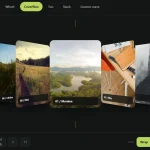 Loopem: Drag & Snap Picker/Carousel Library for Vanilla JS
 Responsive Accessible Carousel Engine with Stories – BrickSlider.js
 Native Scroll Carousel Web Component with Drag – Blossom Carousel
 Stacked Card Carousel Slider With Vanilla JavaScript – MVP Carousel
 Touch-Ready, High-Performance Vanilla JS Slider – Pagiflow
 Create Modern Mobile-friendly Carousels With Slickless.js
 Lightweight Vanilla JS Carousel with Touch Support – Driftbox